Lesson Objective
By the end of this lesson, you will understand the difference between interactive mode and script mode in Python, create and save a complete Python program file, and successfully run your program from the command line. These skills form the foundation for all future programming work.
What You Will Learn
- The difference between interactive mode and script mode
- How to create a Python file with the correct extension
- The structure of a basic Python program
- How to use the print function to display output
- How to run Python programs from the command line
- Best practices for organizing your Python files
Required Knowledge or Tools
This lesson assumes you have completed Lesson 01 and have Python installed on your computer. You should have a code editor ready for writing code. You need to be comfortable opening your terminal or command prompt and navigating to different directories.
Concept Explanation
Python can be used in two primary modes. Interactive mode, which you experienced briefly in the previous lesson, allows you to type commands one at a time and see immediate results. This is excellent for experimentation and quick tests. However, interactive mode does not save your work, and everything disappears when you close the interpreter.
Script mode involves writing your code in a file with the .py extension and then running that entire file. This is how real Python programs are created. The code is saved, can be edited and improved, and can be run multiple times without retyping everything.
The print function is one of the most fundamental tools in Python. It takes whatever you give it inside the parentheses and displays it on the screen. You can print text by enclosing it in quotation marks, or print numbers and the results of calculations directly.
Why This Lesson Matters
Understanding how to create and run program files is essential because all substantial Python work is done in script mode. While the interactive interpreter is useful for testing ideas, you cannot build meaningful applications without knowing how to create, save, and execute program files.
The print function, though simple, is also crucial. It is your primary tool for seeing what your program is doing, for debugging when things go wrong, and for communicating results to users. Mastering output is the first step toward creating useful programs.
Step-by-Step Guide
Step 1: Create a Project Folder
Create a folder on your computer to store your Python programs. Choose a location you can easily find, such as a folder called python-projects in your Documents directory. Keeping your files organized from the start builds good habits.
Step 2: Create Your First Python File
Open your code editor and create a new file. Type the following code:
print("Welcome to Python Programming!")
print("This is my first program.")
print("I am learning to code.")
Step 3: Save the File
Save the file in your project folder with the name hello.py. The .py extension is important because it identifies the file as a Python program. Make sure your editor is not adding extra extensions like .txt.
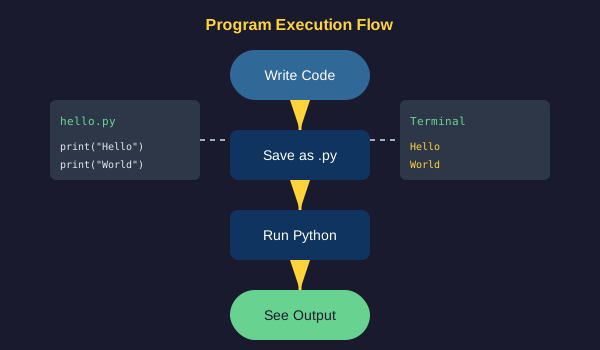
Step 4: Run Your Program
Open your terminal and navigate to your project folder using the cd command. Then run your program by typing:
python hello.pyYou should see all three lines of text appear in the terminal.
Common Mistakes
- Forgetting the .py extension when saving the file, which may prevent Python from recognizing it
- Running python without the filename, which opens interactive mode instead of running your program
- Being in the wrong directory when trying to run the file, resulting in a file not found error
- Missing quotation marks around text in print statements, causing syntax errors
- Using mismatched quotation marks, such as starting with a double quote and ending with a single quote
Practical Example or Scenario
Let us create a slightly more interesting program. Create a new file called greeting.py and add the following code:
print("=" * 30)
print("   Welcome to CodePath")
print("=" * 30)
print()
print("Today we are learning Python.")
print("Programming is a valuable skill.")
print()
print("Let's get started!")
This program demonstrates that you can use the multiplication operator with strings to repeat them, and that an empty print statement creates a blank line. These techniques help you format output attractively.
Lesson Summary
In this lesson, you learned the difference between interactive mode and script mode, with script mode being essential for creating real programs. You created your first Python file, saved it with the .py extension, and ran it from the command line. You now understand how to use the print function to display text and create formatted output. In the next lesson, you will learn about variables and data types, which allow programs to store and work with information.