Lesson Objective
By the end of this lesson, you will understand what Python is, why it has become one of the most popular programming languages, and have a fully configured development environment ready for writing Python code. This foundation is essential for all subsequent lessons in this course.
What You Will Learn
- What Python is and its history as a programming language
- Key characteristics that make Python beginner-friendly
- Common applications and use cases for Python
- How to download and install Python on your computer
- How to verify your installation is working correctly
- How to choose and set up a code editor
Required Knowledge or Tools
This lesson requires no prior programming experience. You should be comfortable with basic computer operations such as downloading files, installing software, and navigating your file system. You will need a computer running Windows, macOS, or Linux with administrator privileges to install software.
Concept Explanation
Python is a high-level, interpreted programming language created by Guido van Rossum and first released in 1991. The language was designed with an emphasis on code readability, using significant indentation and a clean syntax that allows programmers to express concepts in fewer lines of code than languages like C++ or Java.
Being interpreted means that Python code is executed line by line by the Python interpreter, rather than being compiled into machine code before execution. This makes Python ideal for beginners because you can see results immediately without a separate compilation step. You can experiment with code interactively, testing small pieces before incorporating them into larger programs.
Python supports multiple programming paradigms, including procedural, object-oriented, and functional programming. This flexibility means you can start with simple procedural code and gradually learn more advanced concepts as your skills develop.
Why This Lesson Matters
Setting up your development environment correctly is the crucial first step in your programming journey. A properly configured environment eliminates frustrating technical obstacles and allows you to focus on learning programming concepts. Many beginners abandon programming not because they cannot understand the concepts, but because they struggle with installation and setup issues.
Understanding what Python is and why it was designed the way it was helps you appreciate its strengths and use them effectively. Python's readability is not accidental; it is a core design philosophy that makes code easier to write, read, and maintain.
Step-by-Step Guide
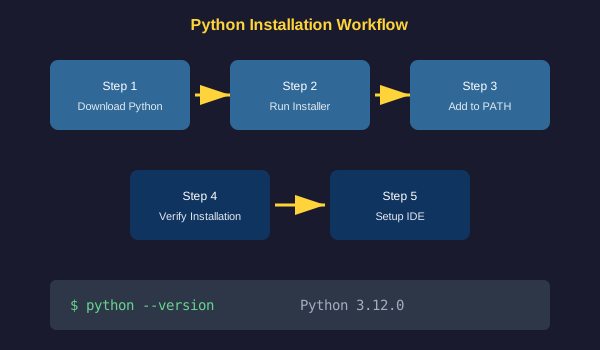
Step 1: Download Python
Visit the official Python website at python.org and navigate to the Downloads section. The website will automatically detect your operating system and suggest the appropriate version. Download the latest stable version of Python 3.
Step 2: Install Python
Run the downloaded installer. On Windows, make sure to check the box that says Add Python to PATH before clicking Install. This step is crucial as it allows you to run Python from the command line. On macOS and Linux, follow the installer prompts to complete the installation.
Step 3: Verify Installation
Open your command line interface. On Windows, open Command Prompt or PowerShell. On macOS or Linux, open Terminal. Type the following command and press Enter:
python --versionYou should see output showing the Python version number. If you see an error, the installation may not have completed correctly or Python may not be in your system PATH.
Step 4: Set Up a Code Editor
While you can write Python in any text editor, a dedicated code editor provides helpful features. We recommend Visual Studio Code, which is free and has excellent Python support. Download it from the official website and install the Python extension for syntax highlighting and code completion.
Common Mistakes
- Forgetting to add Python to PATH during Windows installation, which prevents running Python from the command line
- Installing Python 2 instead of Python 3, as they have significant differences and Python 2 is no longer supported
- Not verifying the installation before proceeding, leading to confusion in later lessons
- Using a basic text editor without syntax highlighting, which makes spotting errors more difficult
Practical Example or Scenario
To confirm everything is working, let us run a simple command. Open your terminal and start the Python interpreter by typing python and pressing Enter. You should see a prompt with three angle brackets. Type the following:
print("Hello, Python!")Press Enter and you should see the message displayed on the screen. This confirms that Python is installed correctly and responding to commands. Type exit() to leave the interpreter.
Lesson Summary
In this lesson, you learned that Python is a high-level, interpreted programming language known for its readability and versatility. You successfully downloaded and installed Python on your computer, verified the installation works correctly, and set up a code editor for writing code. With your development environment ready, you are prepared to write your first complete Python program in the next lesson.